

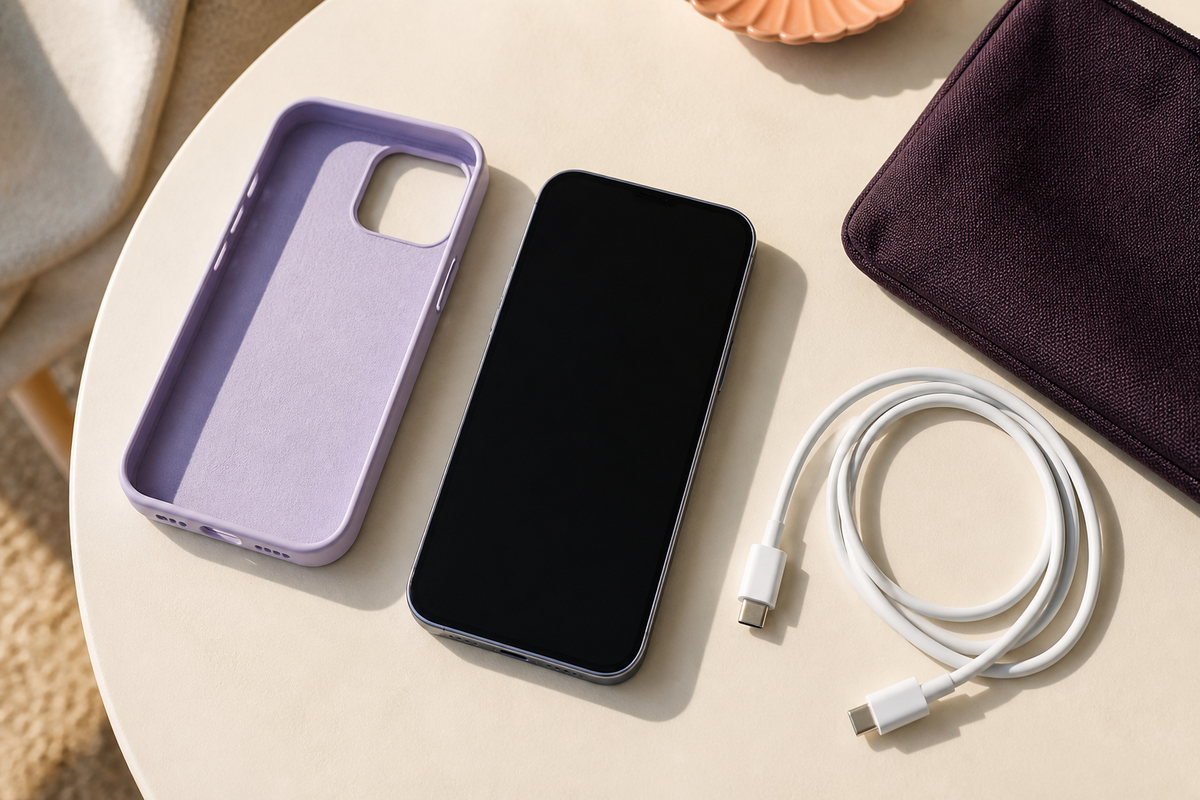
You put your phone down before bed and find the battery barely changed in the morning. Before ordering another charger, work through the setup in a sensible order. A wireless charger not charging can involve device compatibility, power, placement or the case, rather than a failed charging pad.
Quick answer: confirm that your exact phone supports wireless charging, check the charger’s specified power connection, reposition the phone and try removing its case. Watch the phone’s own charging indicator after each change. If equipment is damaged or behaves abnormally, stop using it and seek support.
This is a troubleshooting guide, not an instruction to repair electrical equipment. Follow the manuals for your phone and charger, and do not open either device.
7 checks to work through
1. Confirm the exact phone and charger are compatible
Start with the model name in your phone settings, not just the brand. Look up whether that model supports wireless charging and which accessories its manufacturer recommends. Then compare those details with the charger’s listing or manual.
A magnetic case or attachment alone does not confirm that your phone can charge wirelessly. On a multi-device station, make sure you are using the phone position rather than a charging area intended for a watch or earbud case.
Samsung’s wireless charging troubleshooting guide identifies incompatible chargers and poor connections as possible causes. Keep your model’s own instructions beside you while testing.
2. Check the power supply and connections
The pad or stand still needs power even though no cable connects directly to the phone. Check that the supply cable is securely connected and that the adapter meets the charger manufacturer’s requirements. A cable fitting into a port is not enough information to judge the complete power setup.
Use the supplied or recommended equipment. If you try another cable or adapter, it must also meet those requirements. Change 1 item at a time and note the result, otherwise it becomes difficult to tell what helped.
Belkin’s wireless charging support guide starts with checking the power connection. Do that before spending time adjusting the phone.
3. Reposition the phone and check its screen
Follow the placement shown in the phone and charger instructions. Move the phone slightly if necessary, then look for the phone’s charging indication. Do not rely only on the fact that it is resting on the pad.
Belkin explains that charging coil position can vary by phone model and that poor alignment can stop charging. A phone that looks neatly centred to you may still need a different position for that particular charger.
Once it starts, leave it in place and check again after a short interval. This is especially useful when the problem is charging that starts but does not continue.
4. Try without the case or attached accessories
Remove the phone case for a comparison test if the manufacturer permits it. Keep cards, metal plates and other loose objects away from the charging contact area. If the phone charges without the case, check whether that case suits your charging setup before buying a replacement charger.
Apple specifically suggests removing thick, metal or battery cases when charging is unreliable. Its wireless charging instructions also warn against objects between the phone and charger. Do not add metal pieces or improvised spacers to make a phone sit differently.
5. Check for a temperature warning or charging pause
Read any message on the phone. Apple explains that a warm iPhone can limit charging above 80%, and recommends moving the phone and charger to a cooler location. A paused charge is not automatically evidence that the pad has failed.
On supported Galaxy devices, Samsung also advises letting an overheated phone cool before trying again. See its temperature and charging checks. Avoid repeatedly restarting a test while the device is still reporting a temperature problem.
6. Separate the phone problem from the charger problem
Write down what you already know. Does this phone charge with its normal compatible wired charger? Does another known-compatible wireless charger work with it? If you already own suitable equipment, these comparisons can help you describe the fault to support.
Do not buy several accessories just to run a test, and do not try damaged or unsuitable equipment. A useful record might read: “Phone charges by cable; wireless charging fails with and without the case; the same power adapter works with the manufacturer’s recommended setup.” Record only what you actually checked.
If you are testing wireless charging on an iPhone, disconnect any USB connection to the phone: Apple states that the USB connection takes priority over wireless charging.
7. Consult the model-specific guidance and contact support
If the basic checks have not helped, use the phone manufacturer’s current support instructions. Some devices offer battery diagnostics or model-specific settings. Samsung’s guidance includes diagnostic options, with menus varying by model and software.
Give the retailer or manufacturer the phone model, charger model, power adapter details and your test notes. This is more useful than “it does not work” and can reduce repeated checks. Do not attempt an internal repair of a mains adapter or charging station.
Make a simple troubleshooting note
- What happens: never starts, starts then stops, or charges more slowly than expected.
- What the phone shows: charging symbol, temperature message or another warning.
- What is connected: charger, cable and adapter model details.
- What changed: a new case, different cable or different charging location.
- What you tested: record each change separately.
Common wireless charging questions
Why does my charger light up but my phone does not charge?
A light is not enough to establish that the phone is receiving a charge. Indicator meanings vary by charger, so check its manual, then check the phone’s own status and placement.
Should I replace the pad with a stand?
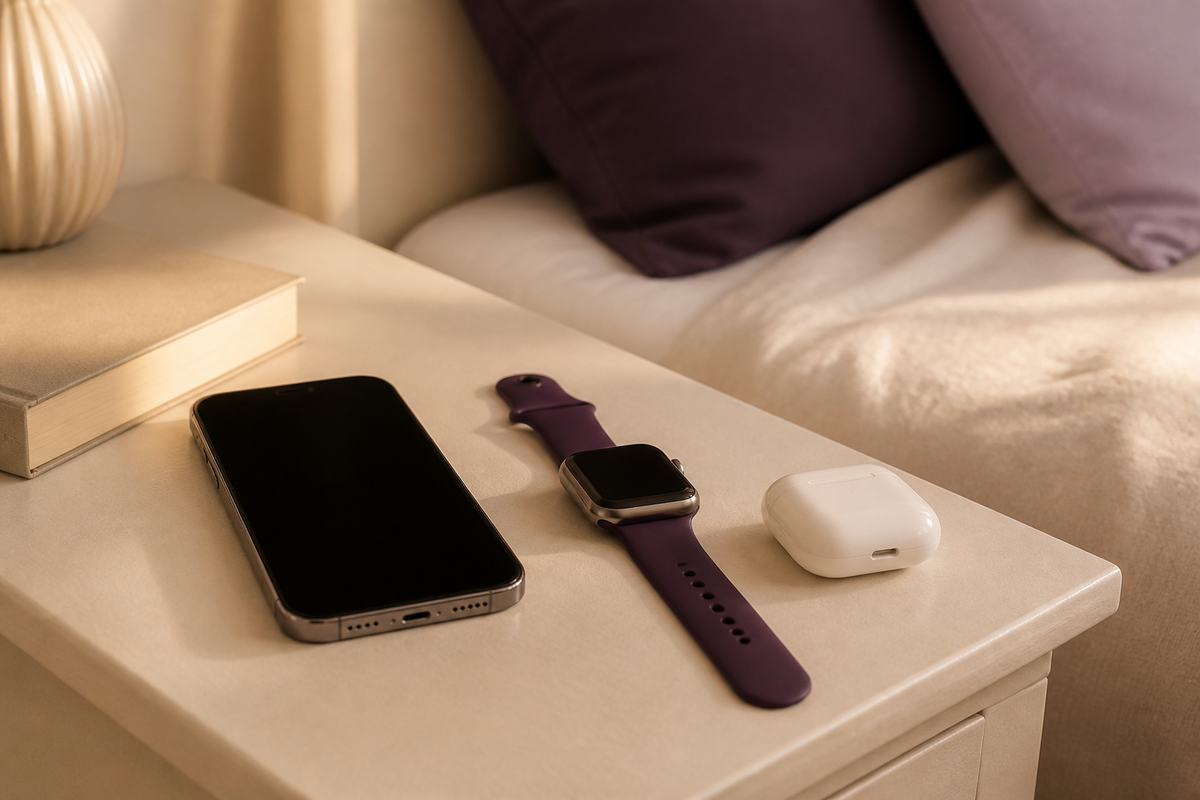
Choose the format around how you want to use the phone. A stand may suit an upright bedside position; a pad may suit putting a compatible device down flat. Neither format removes the need to check compatibility and power requirements.
What should I check before buying another charger?
Use what you learned from the tests. Compare your exact device and case with the new product’s requirements. For several devices, read our 3-in-1 charging station buying guide.
If a replacement suits your needs, compare the Slim Wireless Charging Pad and Bedside Wireless Charging Stand with Alarm Clock. Check the selected product details first. A clearer charging routine starts with a setup that fits.

Leave a comment
This site is protected by hCaptcha and the hCaptcha Privacy Policy and Terms of Service apply.